The Amazon Firestick is the undisputed king of IPTV streaming devices. Affordable, portable, and powerful enough to handle 4K content, it is the device that millions of UK households rely on for their daily entertainment.
Before setting up your Firestick, it helps to choose a reliable provider first. Our Best IPTV UK guide compares the top-rated services for stability, 4K quality, and sports coverage.
Setting up IPTV Firestick streaming takes less than 10 minutes. You might also be interested in our guide on How to Set Up IPTV: Complete Step-by-Step Guide for Beginners.
You might also be interested in our guide on IPTV Smart TV: How to Stream on Samsung, LG, Sony and More.
This guide covers everything: which Firestick model to buy, how to install player apps, entering your credentials, optimising performance, and fixing common issues. Already have a subscription? Skip straight to the setup section.
Need one first? Start with a free trial. You might also be interested in our guide on IPTV Box UK: 7 Best Devices for Streaming in 2025.
Quick Summary: Key Takeaways
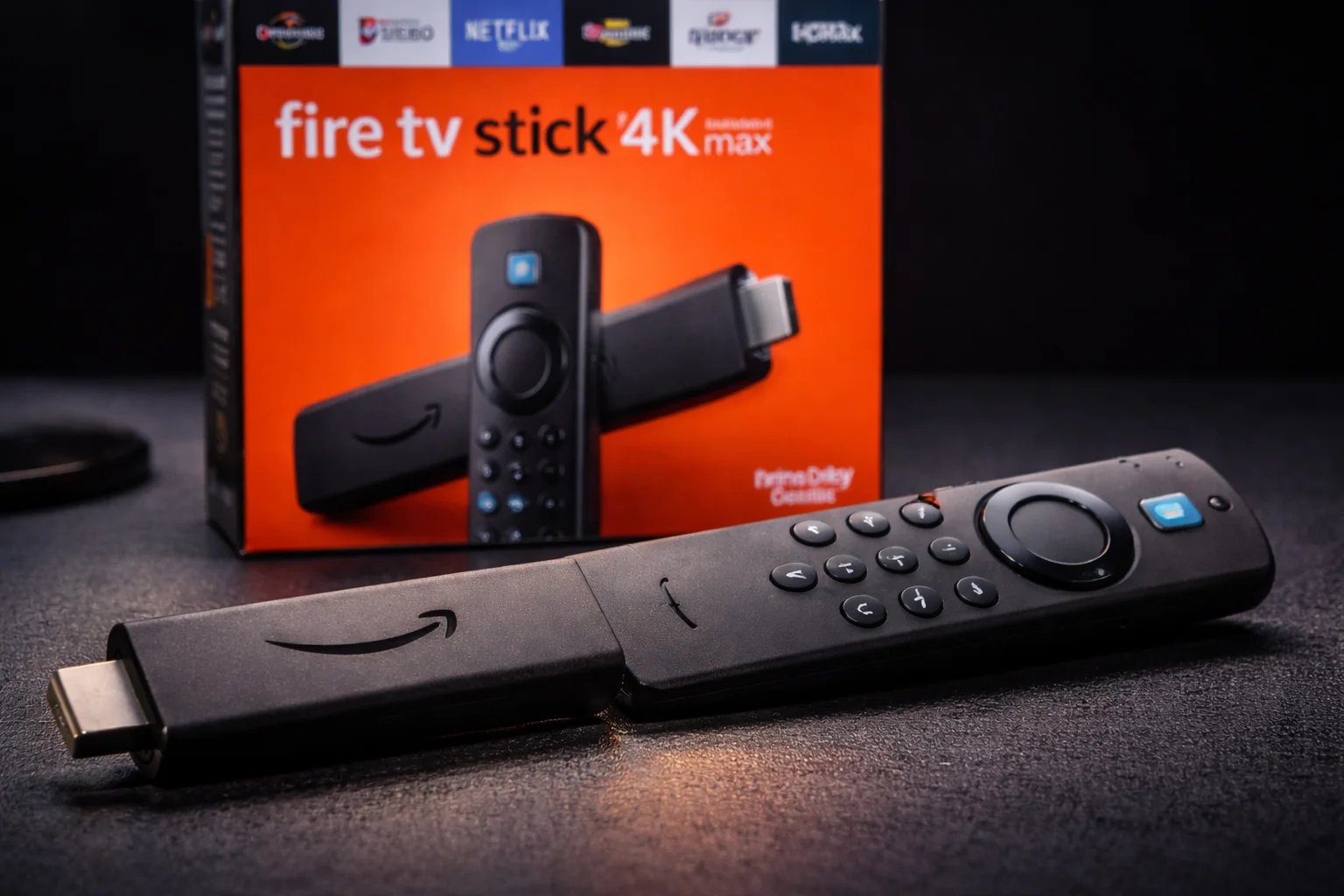
- The Firestick 4K Max is the best model for IPTV streaming.
- IPTV Smarters Pro and TiviMate are the two best player apps.
- You need to enable “Install Unknown Apps” in settings for sideloading.
- Use an Ethernet adapter for the most stable streaming experience.
- A VPN prevents ISP throttling and protects your privacy.
- Clear cache regularly to maintain fast performance.
Table of Contents
- Which Firestick Model to Choose
- Preparing Your Firestick
- Installing IPTV Apps
- Entering Your Subscription Details
- Best IPTV Apps for Firestick
- Performance Optimisation
- Using a VPN on Firestick
- Troubleshooting
- Frequently Asked Questions
- Conclusion
Which Firestick Model to Choose
Amazon sells several Fire TV devices. Here is how they compare for IPTV Firestick use:
| Model | Price | Resolution | RAM | Best For |
|---|---|---|---|---|
| Fire TV Stick Lite | ~£30 | 1080p | 1 GB | Budget option, bedroom TV |
| Fire TV Stick | ~£40 | 1080p | 1 GB | Standard HD streaming |
| Fire TV Stick 4K | ~£50 | 4K UHD | 1.5 GB | 4K content on a budget |
| Fire TV Stick 4K Max | ~£65 | 4K UHD | 2 GB | Best for IPTV |
| Fire TV Cube | ~£140 | 4K UHD | 2 GB | Premium, hands-free |
Our recommendation: The Fire TV Stick 4K Max offers the best balance of performance and price for IPTV.
Its 2 GB RAM handles channel switching and EPG loading faster than cheaper models. The Wi-Fi 6E support provides stronger wireless connections.
If budget is tight, the standard Fire TV Stick handles HD IPTV perfectly well. Avoid the Lite model for primary viewing as its lower specs can cause sluggish performance with large channel lists.
Preparing Your Firestick
Before installing any IPTV apps, configure your Firestick properly:
Step 1: Initial Setup
Plug the Firestick into your TV’s HDMI port and connect the USB power cable. Follow the on-screen setup wizard to connect to your Wi-Fi network and sign in to your Amazon account.
Step 2: Update the Software
Go to Settings > My Fire TV > About > Check for Updates. Install any pending updates.
Running the latest Fire OS ensures compatibility with IPTV apps and includes security patches.
Step 3: Enable Unknown Sources
Navigate to Settings > My Fire TV > Developer Options. If Developer Options is not visible, go to Settings > My Fire TV > About and click on “Fire TV Stick” seven times rapidly. This unlocks Developer Options.
Once in Developer Options:
- Toggle “ADB Debugging” to ON
- Toggle “Install Unknown Apps” to ON (or enable it per-app when prompted)
This step is essential for sideloading IPTV apps that are not available in the Amazon App Store.
Step 4: Disable Data Monitoring (Optional)
Go to Settings > Preferences > Privacy Settings and turn off “Device Usage Data” and “Collect App Usage Data.” This prevents Amazon from tracking which apps you install and use.
Installing IPTV Apps
There are two methods to install IPTV apps on your Firestick:
Method 1: Amazon App Store (Easiest)
Some IPTV apps are available directly in the Amazon App Store:
- From the Firestick home screen, select the search icon
- Type the app name (e.g., “TiviMate”)
- Select the app from results and click “Download”
- The app installs automatically
Available in the store: TiviMate, XCIPTV Player, iMPlayer, OTT Navigator
Method 2: Sideloading via Downloader (For Apps Not in Store)
For apps like IPTV Smarters Pro that may not be in the Amazon Store:
- Open the Amazon App Store and search for “Downloader” by AFTVnews
- Install and open the Downloader app
- In the URL field, enter the download link provided by your IPTV provider
- The APK file downloads automatically
- When prompted, tap “Install”
- Once installed, tap “Done” and delete the APK to save storage space
Method 3: Send to Fire TV (From Phone)
If you have the APK file on your phone:
- Install “Send Files to TV” on both your phone and Firestick from respective app stores
- Open the app on both devices (they must be on the same Wi-Fi network)
- Send the APK from your phone to your Firestick
- Open the file manager on the Firestick and install the APK
Entering Your Subscription Details
Once your player app is installed, entering your IPTV Firestick credentials is straightforward:
- Open the installed player app
- Select “Add New User” or “Add Playlist”
- Choose “Xtream Codes API” as the login method
- Enter your Username, Password, and Server URL exactly as provided by your provider
- Tap “Add User” or “Login”
- Wait 30 seconds to 2 minutes for the channel list to download
Pro tip: Use the Firestick’s built-in keyboard or pair a Bluetooth keyboard for faster text entry. Typing long server URLs with the remote is tedious but manageable.
For detailed app-specific instructions, see our IPTV Smarters Pro guide.
Best IPTV Apps for Firestick
TiviMate (Recommended)
TiviMate offers the most polished IPTV Firestick experience.
Ready to get started? Check out our IPTV subscription UK plans for affordable packages that include instant Firestick activation.
Its multi-day EPG grid, recording capability, and fast channel switching make it the preferred choice for serious streamers. The free version is fully functional; the premium version (approximately £5/year) unlocks recording, multiple playlists, and catch-up support.
IPTV Smarters Pro
The most widely supported player with a simple, intuitive interface. If your provider recommends a specific app, it is usually Smarters Pro. Great for beginners who want something that “just works.”
XCIPTV Player
A feature-rich alternative with a clean dark interface and smooth performance.
Supports Xtream Codes login and M3U playlists. Available directly from the Amazon App Store.
OTT Navigator
Highly customisable with advanced filtering, sorting, and search capabilities. Preferred by users who want granular control over their channel list organisation.
Performance Optimisation
Get the most out of your IPTV Firestick with these proven optimisations:
Use an Ethernet Adapter
The single biggest improvement you can make is connecting your Firestick via Ethernet. Amazon sells an official Ethernet adapter for approximately £15.
Plug it into the Firestick’s USB port, connect an Ethernet cable from your router, and enjoy rock-solid connection stability.
This eliminates Wi-Fi interference from neighbouring networks, microwave ovens, and thick walls. The improvement in stream stability is dramatic and immediate.
Optimise Wi-Fi (If Ethernet Is Not Possible)
- Position your router in the same room as your Firestick
- Connect to your router’s 5GHz band (not 2.4GHz)
- Reduce the distance between router and Firestick
- Avoid placing the router near metal objects or microwaves
Clear Cache Regularly
Firestick devices have limited storage. Clear app caches monthly:
- Go to Settings > Applications > Manage Installed Applications
- Select your IPTV app
- Click “Clear Cache”
This frees up storage and can fix sluggish performance.
Disable Unused Amazon Features
Turn off these battery and performance drains:
- Settings > Display & Sounds > Screensaver: Set to a longer delay or disable
- Settings > Preferences > Featured Content: Disable autoplay on home screen
- Settings > Preferences > Notifications: Disable promotional notifications
Keep Storage Free
Aim to maintain at least 500 MB of free storage. Uninstall apps you do not use, delete downloaded APK files after installation, and avoid installing games or large applications that compete for resources.
Using a VPN on Firestick
A VPN is highly recommended for IPTV Firestick use. It prevents ISP throttling and protects your viewing privacy.
Installing a VPN
- Open the Amazon App Store on your Firestick
- Search for your VPN provider (NordVPN, ExpressVPN, and Surfshark are all available)
- Download and install the app
- Sign in to your VPN account
- Connect to a UK server
VPN Best Practices
- Always connect the VPN before opening your IPTV app
- Choose a UK server for the best connection speeds
- Enable the VPN’s “Kill Switch” to prevent data leaks if the VPN disconnects
- If speeds drop significantly, try a different UK server location
Read our complete VPN for IPTV guide for detailed provider comparisons.
Troubleshooting
### Firestick Running Slowly
- Clear cache for all IPTV apps
- Restart the device: Settings > My Fire TV > Restart
- Uninstall unused apps to free storage
- Ensure Fire OS is up to date
### App Will Not Install (Sideloading)
- Confirm “Install Unknown Apps” is enabled in Developer Options
- Enable it specifically for the Downloader app
- Check that sufficient storage space is available (500 MB minimum)
### Buffering During Streams
- Switch from Wi-Fi to Ethernet
- Activate your VPN (ISP throttling)
- Increase buffer size in your player app settings
- Close other apps running in the background
- Test your internet speed at Speedtest.net
- See our buffering fix guide
### Remote Becoming Unresponsive
- Replace the batteries (AAA)
- Unpair and re-pair: Settings > Controllers > Amazon Fire TV Remotes
- Restart the Firestick by holding the Select + Play/Pause buttons for 5 seconds
### No Sound on Certain Channels
- Go to Settings > Display & Sounds > Audio > Dolby Digital Output and set to “Stereo”
- Switch the video player to External (VLC) in your IPTV app settings
Frequently Asked Questions: Iptv firestick
### Is the Amazon Firestick good for IPTV?
The Firestick is widely considered the best value IPTV device available. The 4K Max model handles large channel lists, EPG data, and 4K streams without any performance issues. Its compact size and portability make it ideal for any TV in the house.
### Which Firestick is best for IPTV?
The Fire TV Stick 4K Max is the best choice for IPTV. Its 2 GB RAM, Wi-Fi 6E support, and powerful processor handle everything from basic channel browsing to 4K live sports without lag.
### Do I need to jailbreak my Firestick for IPTV?
No. “Jailbreaking” is a misleading term.
You simply enable a developer setting that allows installing apps from outside the Amazon Store. This is a built-in feature, not a hack, and does not void your warranty.
### Can I use a free IPTV app on Firestick?
The player apps themselves (TiviMate, Smarters Pro) are free or very cheap. However, you still need a paid IPTV subscription from a provider to get login credentials and access to channels.
### How do I update IPTV apps on Firestick?
Apps installed from the Amazon Store update automatically. Sideloaded apps must be manually updated by downloading the latest APK and installing it over the existing version.
Conclusion: The Ultimate Streaming Companion: Iptv firestick
The IPTV Firestick combination is the most popular streaming setup in the UK for good reason.
The device is affordable, setup takes minutes, and performance with quality IPTV apps is excellent.
For the best experience: choose the 4K Max model, use an Ethernet adapter, install TiviMate or Smarters Pro, and run a VPN. This combination delivers a premium television experience that competes with any cable or satellite package at a fraction of the price.
Ready to get started? Claim a free trial and follow the setup steps above to be streaming within 10 minutes.
Want to test before you buy? Claim your free IPTV trial and try everything on your Firestick for 24 hours at no cost.